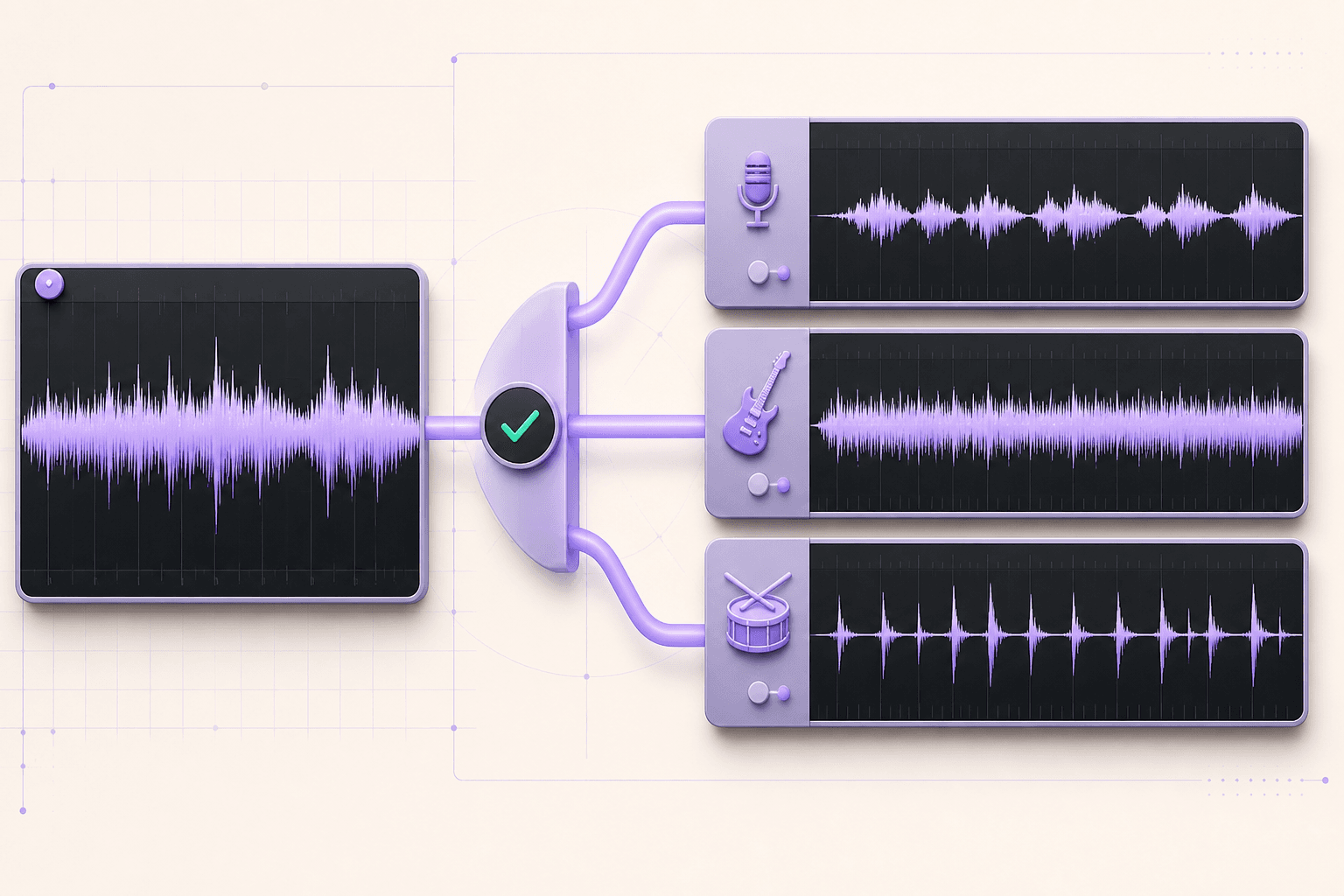
To remove vocals from a song with AI, upload the highest-quality lawful source you have, select Vocal and Instrumental, compare the preview with the original, adjust only if you hear bleed or missing detail, and export a lossless file for editing. The same process can isolate drums, bass, guitar, piano, and other song stems.
Quick answer
LALAL.AI is a practical starting point because it lets you preview a separation before processing the full track and offers several target stems. Treat the output as an editable production asset—not a guaranteed final master. Dense arrangements, stereo effects, and heavily reverberant vocals may still leave bleed or metallic artifacts.
Before you upload: source quality and rights matter
Start with the highest-quality source you are legally allowed to process. A lossless WAV or FLAC file usually gives the separator more information than an MP3 that has already been compressed several times. If the only source is a video, use the original export instead of a copy downloaded and re-encoded by multiple social platforms.
Stem separation does not create permission to use a copyrighted recording. You still need the relevant rights for sampling, remixing, distributing, monetizing, or delivering the result to a client. For your own recordings, client-authorized material, licensed stock music, public-domain works, or practice-only use, keep a note of the source and license with the project.
Best input
Original WAV/FLAC export with no clipping and minimal prior processing.
Usable input
A clean MP3, AAC, or original video file when lossless audio is unavailable.
Avoid
Repeatedly compressed downloads, clipped recordings, or material you cannot lawfully use.
How to remove vocals from a song: the seven-step workflow
1. Define the deliverable before choosing a stem
“Remove vocals” and “extract vocals” are different deliverables. Karaoke needs a usable instrumental. Transcription or vocal editing needs the isolated voice. A drummer may want only drums; a remixer may need several separate instruments. Write down the output you need before processing anything.
2. Open the appropriate separation mode
Open the official LALAL.AI Stem Splitter and select the stem that matches the deliverable. Its official page lists vocal and instrumental, drums, bass, electric guitar, acoustic guitar, piano, synthesizer, strings, wind instruments, and voice/noise. This is a normal editorial link; AI Linkbase does not currently earn a commission from it.
3. Upload one representative file first
Do not batch-process an album before testing one difficult track. Pick a representative file, confirm the correct stem type, and generate the preview. LALAL.AI currently lists common inputs including MP3, WAV, FLAC, AAC, AIFF, OGG, M4A, MP4, MKV, AVI, MOV, and M4V.
4. Compare the preview against the original
Listen on headphones and ordinary speakers. Focus on transitions, reverberant vocal tails, cymbals, distorted guitars, bass notes, and sections where several sounds occupy the same frequencies. A clean chorus does not guarantee a clean intro or bridge.
5. Adjust processing only to solve a specific problem
If the preview contains bleed, compare available network or enhanced-processing options rather than assuming maximum processing is always better. LALAL.AI describes Clear Cut as favoring cleaner separation with possible detail loss, while Deep Extraction retains more detail but may allow more cross-bleed. For vocal room sound, its De-Echo control applies to voice or vocal material—not arbitrary instrumental reverb.
6. Export in a format that fits the next tool
Use WAV or FLAC if the stem will enter a DAW for editing, mixing, or mastering. MP3 can be convenient for a quick rehearsal reference but adds lossy compression. According to the official Stem Splitter documentation, the default output keeps the source format, while supported audio exports include MP3, WAV, FLAC, OGG, AAC, and AIFF.
7. Finish and document the result
Import the result into your DAW or editor, align it with the original, trim silence, repair obvious artifacts, set gain, and export a clearly named version. Keep the untouched source and separated stems in separate folders. Record the stem type, processing option, date, and output format so the result can be reproduced.
Recommended file pattern: Project_Track_Source.wav → Project_Track_Vocal-AI-v1.wav → Project_Track_Vocal-Edited-v2.wav → Project_Track_Final-Approved.wav
How to judge whether a separated stem is usable
| Check | Listen or look for | Next action |
|---|---|---|
| Bleed | Other instruments audible inside the target stem | Try another network or processing mode; repair only the affected section |
| Missing detail | Consonants, transients, cymbals, or harmonics sound cut off | Use less aggressive separation or blend carefully with the source |
| Watery artifacts | Swirling or metallic texture around notes and reverb tails | Test a higher-quality source; consider spectral repair |
| Level and clipping | Unexpected loudness jumps or peaks reaching 0 dBFS | Gain-stage before further processing; do not normalize blindly |
| Phase and alignment | Hollow sound when combined with the original or other stems | Check sample alignment and polarity inside the DAW |
A repeatable three-clip test before processing a full project
A useful product test needs more than one easy chorus. Before you process an album, client library, or long video, choose three short excerpts from material you own or are authorized to use. AI Linkbase recommends the protocol below as an editorial evaluation framework. It is not a claim that every listed result has already been independently benchmarked.
Clip A · Easy
Dry lead vocal
Use a sparse verse with a centered vocal. Check consonants, breaths, and whether the instrumental retains a vocal shadow.
Clip B · Dense
Full chorus
Use layered instruments and backing vocals. Listen for cymbal damage, guitar bleed, and missing vocal harmonics.
Clip C · Difficult
Reverb or stereo effects
Use an exposed transition or vocal tail. Check watery artifacts, chopped ambience, and unstable stereo positioning.
Record the result instead of relying on memory
For each clip, save the processing mode and output format, then score target isolation, retained detail, audible artifacts, stereo stability, and editing required from 1 to 5. Use the same timestamps and listening setup for every comparison. Only batch-process the remaining files after one configuration produces an acceptable result across all three clips.
Evidence standard: If AI Linkbase later publishes product scores or before-and-after audio, the samples, settings, dates, and rights status should appear beside the result. Until then, this guide provides a transparent workflow rather than an unverified “best quality” claim.
Choose the workflow by creator use case
Karaoke or rehearsal track
Start with: Vocal and Instrumental
Judge whether lead vocals remain in the instrumental and whether backing vocals are supposed to stay. Add a count-in or key change later in a DAW.
Podcast or video dialogue
Start with: Voice and Noise
Prioritize speech intelligibility. Noise reduction and echo removal solve different problems, so test them separately and avoid an overprocessed voice.
Music practice
Start with: The instrument you want to hear or remove
Create a focused reference plus a minus-one backing track. Keep both at safe listening levels and label the tempo and key.
Remix or restoration
Start with: The cleanest high-quality source
Expect manual editing. Confirm copyright and client permissions before distributing or monetizing derivative work.
For tools that cover generation, voice, cleanup, editing, and distribution around this step, use the AI Music & Audio workflow hub. If the next step is adding background music to a video, follow the SOUNDRAW YouTube workflow and licensing guide.
When the workflow needs a human audio expert
DIY separation is usually enough for references, practice tracks, rough edits, content drafts, and early creative exploration. Professional help becomes more valuable when the output will be released commercially, delivered to a client, synchronized to paid media, restored from a difficult source, or combined with many separately processed stems.
Affiliate disclosure: The Fiverr links in this section are affiliate links. AI Linkbase may earn a commission if you purchase an eligible service through them, at no additional cost to you. This does not affect which services we recommend or how we evaluate the workflow. Read the full disclosure.
- The vocal contains obvious bleed, metallic artifacts, or missing consonants.
- Several stems must sum cleanly without phase or timing problems.
- The final result needs mixing, mastering, loudness compliance, or broadcast delivery.
- You need manual spectral repair, pitch editing, or detailed automation.
- The rights, licensing, credits, or client deliverables are unclear.
A useful expert brief
Provide the untouched source, AI-separated stems, a reference mix, timestamps for audible problems, required delivery format, sample rate, deadline, intended use, and confirmation that you have permission to use the material. Ask for a short repaired sample before commissioning a large batch.
Repair the files
Audio editing
Use this route when separated vocals or instruments still need noise removal, spectral repair, timing edits, fades, cleanup, or format conversion.
Browse audio editors on Fiverr Pro →Prepare the release
Mixing & mastering
Use this route when multiple stems must balance cleanly, meet loudness targets, translate across playback systems, or become a release-ready master.
Compare mixing & mastering experts →Rebuild the production
Music producers
Use this route when AI separation cannot recover a usable arrangement and the track needs replayed parts, a new backing track, remixing, or full production.
Find music producers on Fiverr Pro →Sources and editorial notes
- LALAL.AI Stem Splitter — supported stems, formats, preview workflow, processing controls, and exports.
- LALAL.AI Echo & Reverb Remover — vocal-only scope and distinction between echo removal and noise reduction.
- LALAL.AI Media Kit — current product-family and platform descriptions.
Disclosure: AI Linkbase was not paid to publish this guide. The LALAL.AI links above are ordinary, non-affiliate editorial links at the time of publication. The Fiverr links are affiliate links, which means AI Linkbase may earn a commission on an eligible purchase at no extra cost to you. Product capabilities and programme terms can change; verify current formats, plans, processing modes, service scope, and usage terms before purchasing.